How Does Email Work? Our Beginner’s Guide
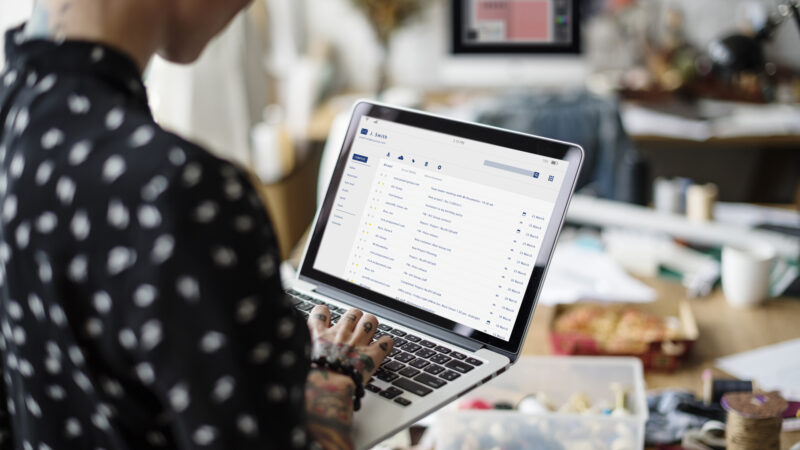
Email is an essential part of communication. Whether you run a business or just use it in a personal capacity, we use it every day. From sending invoices, responding to customer queries, or signing up for services, it is impossible to avoid. Yet, despite using this facility on a daily basis, many of us have no idea how it works. So, how does email work? Our beginner’s guide is for everyone who has ever wondered what happens when you hit ‘send’ or what the difference is between Gmail and owning your own domain.
We also help you decipher all the strange words associated with emails, such as POP3, IMAP, and mail servers. What are they? How do they work? Should you put them in the same box as all the other geeky internet phrases you don’t know the meanings of?
Understanding how email travels from outbox to inbox is relatively straightforward once you get through all the jargon, and knowing how it all works can help you make more informed choices for your business.
The Basics: How Email Moves from Sender to Recipient
When you send an email, it doesn’t simply travel directly from your device to the recipient’s inbox. Instead, it takes a short but complex journey through several systems that ensure it reaches the right place. Here’s what happens:
1. The Email Client (sender) is the software or application you use to compose and send emails. Popular email clients include Outlook, Apple Mail, and Thunderbird. This is where your email starts its journey.
2. The Mail Server – Once you hit send, your email is forwarded to a mail server. The mail server is a powerful computer that sorts and directs emails to the right recipient.
3. The Recipient’s Mail Server – When your mail server has an email to deliver, it will contact the recipient’s mail server, which will store the message until it is accessed.
4. The Email Client (Recipient) – The recipient’s email client fetches the email from their mail server and displays it in their inbox.
It all happens in seconds, thanks to these systems working together. But really, there is much going on behind the scenes that you aren’t aware of…..until it goes wrong!

What is a Mail Server?
A mail server is like a post office for emails. It receives, sorts, and forwards messages to the correct destination. Every email provider has its own mail servers that handle sending and receiving emails for its users. You can go directly to your server to send and receive emails, but most people go through an email client because the front end is more user-friendly.
What is an Email Client?
An email client is the program or app you use to send and receive messages. Some email clients work on your computer or phone, while others run entirely in a web browser. Examples include:
- Microsoft Outlook (desktop application)
- Apple Mail (built into Apple devices)
- Mozilla Thunderbird (a free, open-source option)
- Webmail for services like Gmail and Hotmail
Each client connects to a mail server to retrieve your messages.
How Can You Access Your Email?
There are three main ways to access email:
1. Webmail
Services like Gmail, Outlook.com, and Yahoo Mail allow you to access email through a web browser without downloading software. You can log in to your mailserver website directly, and your emails are stored online.
2. Desktop Email Clients
Programs like Microsoft Outlook or Apple Mail store your emails on your computer. They let you read and compose messages even when you are offline.
3. Mobile Email Apps

Most smartphones come with built-in email apps, or you can download third-party ones like Outlook, Gmail, or BlueMail to manage your inbox on the go.

What is Webmail?
Webmail refers to email services that are accessed through a web browser. Instead of downloading an application, you log in to a website.
Pros:
- Accessible from any device with an internet connection
- No need to install software
- Automatically updates without user action
Cons:
- Requires an internet connection to view old emails (unless offline mode is enabled)
- Limited customisation compared to desktop clients
Gmail, Hotmail, or Your Own Domain?
Many businesses start with free email services like Gmail or Hotmail (now Outlook.com), but is that the best choice? Here are the key differences:
Gmail and Hotmail – Free, user-friendly, and have ample storage limits. However, they look less professional for business use and lack complete control over your emails.
Your Own Domain – An email address like yourname@yourbusiness.co.uk gives a professional impression and allows greater control. These can be set up with services like Microsoft 365 or Google Workspace.
How Many Types of Outlook Are There?
Microsoft Outlook can be confusing because it comes in several different forms:
1. Outlook (Desktop Application) – Part of Microsoft Office, this is a popular email client for businesses.
2. Outlook.com – The free webmail version, formerly Hotmail, is accessible via a browser.
3. Outlook for Microsoft 365 – A cloud-based version that is included with Microsoft 365 subscriptions and offers more business features.
4. Outlook Mobile – The mobile app version for smartphones and tablets.
POP3 vs IMAP: What’s the Difference?
You may have encountered the terms POP3 and IMAP when setting up an email account. These are two different ways your email client retrieves messages from a mail server.
POP3 (Post Office Protocol 3)
POP3 3 downloads emails to your device and removes them from the server. It is best for users who check email from only one device. Email may be gone unless backed up elsewhere if the device is lost or damaged.
IMAP (Internet Message Access Protocol)
IMAP stores emails on the server and syncs them across multiple devices. It’s ideal for users who check email from different devices laptops, phones, tablets). Sent emails are accessible from anywhere. IMAP is the better choice for most businesses because it offers flexibility and security.
Conclusion
Summary: What You Need to Know About Email
An email client is the app or software you use to send and receive messages.
- A mail server stores and delivers emails.
- You can access email through webmail, desktop clients, or mobile apps.
- Gmail and Hotmail are convenient but lack professional branding, while a custom domain offers credibility.
- Microsoft Outlook comes in multiple forms, from desktop apps to mobile versions.
- POP3 downloads emails and removes them from the server, while IMAP keeps emails online and syncs across devices.
Further Reading
What to Include In Your Marketing Emails?
The Best Email Marketing Platforms For Small Businesses
Need help turning this advice into action?
If you are reviewing your website, marketing or online visibility, we can help you work out what to improve first.
Related articles
 Content
Ten Great Ways for Small Businesses to Use PDFs
Small businesses constantly seek effective, cost-efficient ways to communicate with clients, manage operations, and share information internally. The PDF (Portable Document Format) has established…
Read article
Content
Ten Great Ways for Small Businesses to Use PDFs
Small businesses constantly seek effective, cost-efficient ways to communicate with clients, manage operations, and share information internally. The PDF (Portable Document Format) has established…
Read article
 Email Marketing
Why Email Marketing Should Have A Mobile-Friendly Design
With the rise of smartphones and other mobile devices, it has become crucial for businesses to adapt their marketing strategies to cater to a…
Read article
Email Marketing
Why Email Marketing Should Have A Mobile-Friendly Design
With the rise of smartphones and other mobile devices, it has become crucial for businesses to adapt their marketing strategies to cater to a…
Read article
 Email Marketing
What to Include In Your Marketing Emails?
What to Include In Your Marketing Emails? Email is a great way to stay in touch with your customers and promote your products or…
Read article
Email Marketing
What to Include In Your Marketing Emails?
What to Include In Your Marketing Emails? Email is a great way to stay in touch with your customers and promote your products or…
Read article
 VideoandWeb.com